How Python runs your code
Python reads your code from top to bottom, one line at a time. Like a recipe: step 1 before step 2. print() shows something on the screen (the output). Lines that start with # are comments: notes for you, which Python skips.
Text goes inside quotes ("..." or '...'). print(2 + 3) shows 5, but print("2 + 3") shows 2 + 3 exactly as written, because it's text.
Variables are name tags
Think of a variable as a name tag stuck on a value. When you write age = 18, Python creates the value 18 and sticks the tag age on it.
Important: = in Python does not mean "equals" like in math. It means "assign": take the value on the right and stick the name on the left to it. That's why age = age + 1 is valid (in math it would be impossible).
- Letters, numbers and
_only. A name can't start with a number. - Case-sensitive:
Ageandageare different names. - Use
snake_case:final_grade, notfinalgrade.
Try it: what's the output?
x = 10
y = x
x = 99
print(y)
Answer: 10. At y = x, the tag y was stuck on the value 10. Moving x to 99 later doesn't move y.
Data types: what kind of value is it?
Every value in Python has a type. The type decides what you can do with it: two numbers can be added, while two pieces of text get joined. To check a type, use type().
| Type | Used for | Examples |
|---|---|---|
| intinteger | Whole numbers, no decimal point | 19, -5, 2026 |
| floatdecimal | Numbers with a decimal point | 1.75, 3.0, -0.5 |
| strstring | Text, always in quotes | "Ana", 'BSIT', "19" |
| boolboolean | Yes or no: True or False | True, False |
Watch out for "19" and "True": because they're in quotes, they are str, not a number or a bool.
Type conversion
input() always gives you a str, even when the user types a number. So you convert it:
age = input("Your age? ")   # "18" (str)
age = int(age)               # 18 (int)
print(age + 1)               # 19
Why is this an error?
print("5" + 5)Python can't tell whether you want to join text or do math. Make both the same type: int("5") + 5 gives 10, and "5" + str(5) gives "55".
Strings: text in a row
A string is a row of boxes, one character per box. Each box has an index (its address). Counting starts at 0, not 1. You can also count from the end with negative indexes: -1 is the last character.
You can also click a single box to see its word[i].
word[start:stop] takes characters from start up to, but not including, stop. So word[0:3] is 3 characters: indexes 0, 1 and 2.
s = "Python"
print(len(s))        # 6
print(s.upper())     # PYTHON
print(s.lower())     # python
print(s[::-1])       # nohtyP  (reversed!)
print("th" in s)     # True
name = "Ana"
yr = 1
# f-string: put variables inside {}
print(f"Hi {name}, you're in year {yr}!")
# Hi Ana, you're in year 1!Lists: one variable, many values
A list is an ordered collection of values inside [ ], separated by commas. Like strings, list indexes start at 0. The difference: you can change what's inside a list. You can add, remove and reorder items.
grades = [88, 92, 75]
print(grades[0])     # 88  (first)
print(grades[-1])    # 75  (last)
grades[1] = 95       # replace index 1
print(grades)        # [88, 95, 75]
print(sum(grades)) # 258.append(x) adds to the end. .pop() removes the last item and hands it back to you. Popping an empty list is an error.
Dictionaries: look things up by name
In a list you find a value by its number (index). In a dictionary you find it by its key, like fields on a student record: key → value. Dictionaries are written with { }.
student = {"name": "Ana", "course": "BSCS", "year": 1, "scholar": True}Use a list for a sequence of similar items (a list of grades). Use a dict when each value has its own label (one student with a name, a course and a year).
if / elif / else: making decisions
An if asks a question whose answer is True or False. If it's True, the block under it runs. The elifs are checked one by one, top to bottom, stopping at the first True. If nothing is True, the else block runs.
Comparison operators
== | equal? |
!= | not equal? |
> < | greater than / less than |
>= <= | greater or equal / less or equal |
and or not | combine conditions |
Other languages use { } to group code. In Python, the indent (4 spaces) tells Python which lines belong to the if. Don't forget the colon : at the end of if, elif, else, for, while and def lines.
And remember: = assigns, == compares.
Loops: repeat without copy-pasting
A for loop goes through each item of a list (or a string, or a range), one at a time. On every pass, the loop variable is stuck on the next item.
When you just want to repeat something a number of times, use range(). It produces a sequence of numbers, with the same rule as slicing: the stop value is not included.
while loop
Repeats as long as the condition is True. Make sure something inside the loop changes, or you get an infinite loop (it never stops; press Ctrl + C to stop it).
snooze = 3
while snooze > 0:
    print("5 more minutes...")
    snooze = snooze - 1
print("Awake!")
break and continue
for n in range(1, 10):
    if n == 3:
        continue   # skip 3
    if n == 6:
        break      # stop at 6
    print(n)
# 1 2 4 5Functions: reusable recipes
A function is a named block of code. You write it once with def, then call it as many times as you like. Data goes in through parameters, and the answer comes out with return.
print() only shows something on the screen. return hands a value back so you can keep using it (store it in a variable, compute with it). A function with no return gives back None.
def greet(name, course="BSCS"):
    return f"Hi {name} from {course}!"

print(greet("Ana"))           # uses the default course
print(greet("Ben", "BSIT")) # passes its own courseError decoder: don't fear the red text
Errors are normal, even for senior developers. An error message is a clue, not an insult. Read it from the bottom up: the last line names the error, and the lines above it point to the line number.
if age > 18
    print("Adult")
The code's "grammar" is wrong. Here the colon is missing : after the if. Also check for missing quotes or brackets.
for x in range(3):
print(x)
A line that belongs inside a block isn't indented. Add 4 spaces before print(x).
name = "Ana"
print(Name)
Python doesn't know that name. Usually a typo or wrong capitalization: name ≠ Name.
age = input("Age? ")
print(age + 1)
Two different types got mixed. input() gives a str, so wrap it in int() before adding.
nums = [10, 20, 30]
print(nums[3])
You went past the end of the list. 3 items means indexes 0, 1 and 2 only. The last one is nums[2] or nums[-1].
grades = []
print(sum(grades) / len(grades))
You divided by zero. The list is empty, so len() is 0. Check first: if len(grades) > 0:
Quick quiz
Six questions. Pick an answer to see right away whether it's correct, and why.
Your scientific calculator: run it, use it, explain it
Time for a real program: scientific_calculator.py. It opens a window with 53 keys, shows the answer while you type, and keeps a history of your calculations. It's about 1,300 lines long, but it's built from the pieces you already learned: strings, lists, dicts, tuples, if/elif, loops and functions, plus three new ideas you'll meet soon: classes, exceptions and recursion.
By the end of this lesson you should be able to run it on your own computer, use every key, and explain to someone else how it works.
ARun it on your computer
- Install Python 3.
Download it from python.org. On Windows, tick “Add python.exe to PATH” on the first screen of the installer. The calculator uses Tkinter to make its window, and Tkinter comes with Python, so there's nothing else to install.
- Put both files in one folder.
For example
Documents\calculator, withscientific_calculator.py(the app) andtest_scientific_calculator.py(its tests) inside. - Open a terminal in that folder.
Windows: open the folder in File Explorer, click the address bar, type
cmdand press Enter. In VS Code: File → Open Folder…, then Terminal → New Terminal. - Start the calculator.
> python scientific_calculator.pyThe window opens. Close it like any other window when you're done.
- Run the tests (optional, but satisfying).
> python -m unittest -v
test_ans_holds_last_result (…EngineTest…) ... ok
test_arithmetic_and_precedence (…EngineTest…) ... ok
… 41 more …
----------------------------------------------------------------------
Ran 43 tests in 4.2s

OK
Each line is one test.
OKat the end means every answer the tests checked was right.
If something goes wrong
| You see… | It means… | Do this |
|---|---|---|
'python' is not recognized…, or the Microsoft Store opens | Python isn't installed, or Windows can't find it. | Try py scientific_calculator.py. If that fails too, run the Python installer again and tick “Add python.exe to PATH”. |
can't open file … No such file or directory | The terminal is in a different folder. | Type dir (Windows) or ls (Mac) to list the files there. Use cd to move into the folder that has the .py files. |
ModuleNotFoundError: No module named 'tkinter' | This Python was installed without Tkinter. | Windows: run the installer again, choose Modify and tick “tcl/tk and IDLE”. Linux: sudo apt install python3-tk. |
FAILED (failures=1) after the tests | A change in the code broke an answer. | Read the failing test's name and input: it tells you exactly what broke. Undo your last change and run the tests again. |
BUse it: a tour of the window
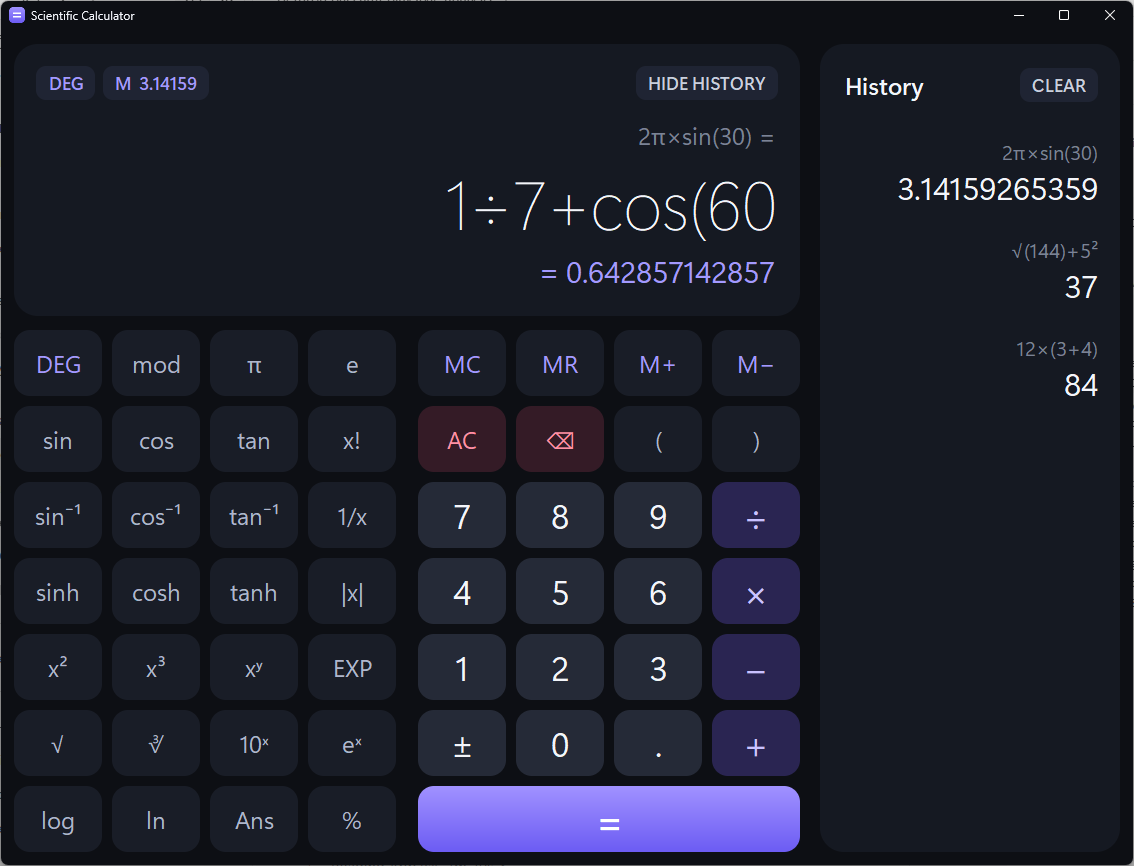 1
2
3
4
5
6
7
8
9
10
- 1Status chips.
DEGorRADis the angle mode.M 3.14159appears while something is saved in memory. - 2Show / hide history. Hiding it makes the window smaller.
- 3Last calculation, like
2π×sin(30) =. Error messages appear here in red. - 4The display. Type here or use the keys. You can click inside it to edit any part. Long expressions get a smaller font.
- 5Live preview. The answer appears while you type, before you press =.
- 6Scientific keys: trig, powers, roots, logs and constants.
- 7Memory keys to save a number for later.
- 8Number pad with the four operators, brackets, clear and backspace.
- 9Equals calculates the answer.
- 10History. Every answer is saved here, newest first. Click one to reuse it.
What every key does
| Keys | What they do | Try |
|---|---|---|
| 0–9.+ − × ÷( ) | Normal maths. Brackets first, then × and ÷, then + and −. | 2+3×4 → 14 |
| = | Calculates. Pressing it again changes nothing. | |
| AC⌫ | AC clears everything. ⌫ deletes one character. | |
| ± | Flips the sign of the last number (3+5 → 3−5). Right after =, it flips the answer. | |
| sincostan | Trig functions. Their inverses are sin⁻¹ cos⁻¹ tan⁻¹. | sin(30) → 0.5 |
| DEG | Switches between degrees (DEG) and radians (RAD). Chip ① shows which one is on. | |
| sinhcoshtanh | Hyperbolic functions (you'll meet them in calculus). | cosh(0) → 1 |
| x²x³xʸ | Square, cube, any power. xʸ types ^. | 2^10 → 1024 |
| √∛ | Square root and cube root. | √(144) → 12 |
| 10ˣeˣlogln | Powers of 10 and of e, and their opposites: log is base 10, ln is base e. | log(1000) → 3 |
| 1/x | One divided by the number (the reciprocal). | 4⁻¹ → 0.25 |
| x! | Factorial: 5! = 5×4×3×2×1. Whole numbers from 0 to 170 only. | 5! → 120 |
| % | Percent: divides by 100. | 200×10% → 20 |
| mod | The remainder after dividing. | 7 mod 3 → 1 |
| |x| | Absolute value: removes the minus sign. | abs(−5) → 5 |
| πe | The constants π = 3.14159… and e = 2.71828… | 2π → 6.28318530718 |
| EXP | Scientific notation. Types a capital E: 6.02E23 means 6.02 × 10²³. | 1.5E3 → 1500 |
| Ans | The last answer. | |
| MCMRM+M− | Memory. M+ adds the current answer to memory, M− subtracts it, MR types it, MC clears it. |
Keyboard shortcuts
| Press | What happens |
|---|---|
| 0–9 + ( ) . ^ ! % | Types them. The matching key on screen lights up. |
| * / - | Typed as × ÷ −. |
| Letters, like sin( | You can type function names directly. Capital E is the same as EXP. |
| Enter or = | Calculates. |
| Esc / Backspace | Clears everything / deletes one character. |
| ↑ ↓ | Brings back earlier calculations, like in a terminal. |
| Ctrl+V | Pastes an expression. |
- Press an operator right after = and it keeps going from the answer. The display shows
Ans×…, and Ans keeps every digit, not just the ones on screen. - Press a number right after = and it starts a new calculation.
- You don't have to close brackets:
sin(30works. - You can leave out ×:
2π,3sin(30)and2(3+4)all work. - Small
eis the number e. CapitalE(EXP) is scientific notation. - The display shows up to 12 digits, so
0.1+0.2shows0.3. - A red error never crashes the app. Fix the expression and press = again.
Try it: six small problems (answers inside)
- The long side of a right triangle with sides 3 and 4:
√(3²+4²)→ 5 - ₱1,000 saved at 5% a year for 10 years:
1000×1.05^10→ 1628.89462678 - Check a famous rule:
sin(37)²+cos(37)²→ 1 (try any angle) - The area of a circle with radius 7:
π×7²→ 153.938040026 - The number of ways to line up 5 books:
5!→ 120 - Minutes in a year:
365×24, press =, then×60(the display showsAns×60) → 525600
CHow it works
The big picture
The window
CalculatorApp shows the keys and the display. When you press =, it sends the text, like "3sin(30", to the engine.
The engine
ScientificEngine.evaluate() works out the answer in two steps:
_tokenizecuts the text into pieces (tokens)._Parserreads the pieces in the right order and computes.
or error
Back to the window
format_number() turns 1.5 into the text "1.5". The window shows it and adds it to the history.
The engine never touches the window. That's why the tests can check over a hundred answers in a few seconds without opening it, and why the same engine could be reused in a website. (This page does that: the lab below runs a JavaScript copy of it.)
Map of the file
imports and CalculatorError, the app's own error type× → *), the known names like sin and pi, and _tokenize()_Parser: reads the tokens in the right order and computes the answermod, factorial, and cleaning up tiny rounding errorsScientificEngine: degrees or radians, Ans, friendly error messagesformat_number(), complete_parentheses(), toggle_sign(): small text helpersTHEME colours, KEY_STYLES, display font sizes, the app iconRoundedButton, Card, Key and KeypadCalculatorApp: the window, keyboard, memory, live preview and historymain(): starts the appFollow one calculation
The engine here is a JavaScript copy of the one in the .py file, so it can run in a web page. It goes through the same steps and gives the same answers and error messages: it was checked against the Python version on 40,000 random expressions. You can type on your keyboard too.
How does it know × comes before +?
The parser is a ladder of functions. Each rung handles one group of operators, then asks the rung below it for the pieces on each side. Lower rungs bind tighter, so they get computed first. It's PEMDAS written as code.
def expr(self):
    value = self.term()
    while True:
        if self._accept("+"):
            value += self.term()
        elif self._accept("-"):
            value -= self.term()
        else:
return valueIt's a while loop with if / elif / else. Get one term. While the next token is + or -, get another term and add or subtract it. When there's no more + or -, return the value.
Brackets are the clever part: primary calls expr again for whatever is inside ( ). A function that ends up calling itself is called recursion.
Things you already know, inside the calculator
A dict of dicts and tuples
KEY_STYLES = {
    "digit": {"faces": ("#252a37", "#2f3545", "#3a4153"),
              "text": "#f3f5fa"},
    "operator": {"faces": ("#2a2552", "#342e64", "#3e3777"),
                 "text": "#c9c1ff"},
    ...
}
face = style["faces"][STATES.index(state)]
Each key kind has a tuple of three colours: normal, mouse over it, and pressed. STATES.index("hover") is 1, so a hovered key uses the second colour.
A dict of functions
_POSTFIX = {
    "!": _factorial,
    "%": lambda value: value / 100,
    "²": lambda value: _power(value, 2.0),
    ...
}
value = _POSTFIX[text](value)
Dict values can be functions. _POSTFIX["%"] gets a function, and (value) calls it. lambda value: value / 100 is a tiny one-line function with no name. The engine uses the same trick for "sqrt": math.sqrt and friends.
String methods
def complete_parentheses(expression):
    return expression + ")" * max(
        expression.count("(") - expression.count(")"), 0)
For "sin(30": one ( minus zero ) is 1, and ")" * 1 is ")", so you get "sin(30)". Multiplying a string repeats it. max(…, 0) stops it from going negative.
A while loop over a string
tokens = []
pos = 0
while pos < len(text):
    if text[pos].isspace():
        pos += 1
        continue
    match = _TOKEN_RE.match(text, pos)
    ...
    tokens.append((kind, match.group()))
    pos = match.end()
The tokenizer walks along the text with an index pos. It skips spaces with continue, matches one number, name or symbol, appends it to a list, and jumps pos past it. (Shortened; ... hides the error checks.)
A list as the history
self.history.append((expression, value))

# ↑ key: step back through the list
position = len(self.history) - 1
text = self.history[position][0]
Every answer is saved as a tuple (expression, value) at the end of a list. ↑ starts at the last index, len(…) - 1, and moves back one each time.
if / elif with strings
if head.endswith("+"):
    return head[:-1] + "−" + number
if head.endswith(("−", "-")):
    ...
return head + "−" + number
This is part of the ± key. If the number comes after a +, swap it for −. head[:-1] is a slice: everything except the last character.
New ideas you'll meet next
class ScientificEngine:
    def __init__(self):
        self.degrees = True
        self.ans = 0.0

engine = ScientificEngine()
engine.evaluate("2+3")   # 5.0, and engine.ans is now 5.0
Classes. A class bundles data (degrees, ans) with the functions that use it, which are called methods. self means "this particular calculator". Calling ScientificEngine() builds one.
try:
    result = _Parser(tokens, self).parse()
except ZeroDivisionError:
    raise CalculatorError("Cannot divide by zero") from None
Exceptions. try runs code that might fail, and except catches one kind of error. Here Python's own ZeroDivisionError becomes a friendly message instead of crashing the app. Try 1÷0 in the lab above.
self.bind("<ButtonRelease-1>", self._on_release)
self.entry.bind("<Return>", ...)
self.entry_var.trace_add("write", self._on_text_change)
...
CalculatorApp().mainloop()
Event-driven programs. Nothing runs by itself. Each function waits for its event: a mouse button let go, the Enter key, or any change to the display's text. That last one is how the live preview updates on every keystroke. mainloop() waits for events until the window closes.
How the window is drawn
Tkinter's normal buttons are plain rectangles, so the calculator draws its own keys. Each key is one picture of a rounded rectangle, plus its text, and all 53 keys sit on one big canvas. The smooth corners come from a little geometry: for each pixel near a corner, measure how far it is from the corner circle's centre. A pixel that is half inside the circle gets a half-and-half mix of the key colour and the background.
def _coverage(distance, radius):
    """How much of a pixel lies inside the circle (0 to 1)."""
    return min(max(radius - distance + 0.5, 0.0), 1.0)
Why one canvas? At first every key was its own widget, and resizing the window felt laggy. Measuring showed why: Tk had to move and repaint 53 separate widgets on every resize step. One canvas with shared pictures fixed it:
Measure first, then fix the slow part. Guessing would have meant optimising the Python code, which turned out to be only a small slice of the time.
Tests: code that checks code
def test_superscripts_are_postfix_operators(self):
    self.assertResults({
        "3²5": 45,   # (3²)·5, not 3^25
        "2²³": 64,   # (2²)³
        "3²!": 362880,
    })
Each line says "this input should give this answer". If a change breaks the calculator, a test fails and names the exact input. The file has 43 tests. Below are its engine and helper checks, run right now in your browser against this page's copy of the engine.
Show every check
| Test | Input | Expected | Got |
|---|
Bugs the testing caught
Before the calculator was finished, a careful review plus 120,000 random test inputs found 12 bugs. A few of them:
The ² was turned into the text ^2, so 3²5 became 3^25. Fix: ² ³ ⁻¹ became their own tokens on the postfix rung.
The number from memory was glued onto the 2. Fix: if the cursor is right after a digit, put a × in between.
Computers store 0.1 in binary, so the remainder came out as 0.0999… Fix: a remainder that is within rounding noise of 0 or of the divisor counts as 0.
tan(45) is really 0.9999999999999999 inside the computer. Fix: numbers that close to a whole number are treated as whole.
Each bug became a new test, so it can never quietly come back.
- Run it and play with it first.
- Read the short helpers:
format_numberandcomplete_parentheses. - Then
_tokenize, then the parser, with the ladder above next to you. - Change one small thing (a colour in
KEY_STYLES, a new error message), run the tests, and see what happens.
DExplain it to someone else
The 30-second version
“I made a scientific calculator in Python. You type something like 3sin(30), and it shows the answer while you type. It doesn't use Python's eval(). Instead it cuts the text into tokens, and a parser reads them in the right order, like PEMDAS, to compute the answer. The window is made with Tkinter, and 43 automatic tests check that the maths is right.”
The 2-minute demo
- Open a terminal and run
python scientific_calculator.py.It's one Python file, and it only uses what comes with Python. - Type
2+3×4. Point at the preview= 14.It follows the order of operations, and it shows the answer before I even press equals. - Press =, then type
×2.If I keep going after equals, it continues from the answer, called Ans. - Type
sin(30and press =.It closes the bracket for me. DEG means degrees; this button switches to radians. - Type
1÷0and press =.Errors show a message instead of crashing. In the code, that's try and except. - Click an answer in the history panel.Every answer is saved in a list, and clicking one reuses it.
- Open the code at
_tokenize, thenexpr.First the text is cut into tokens. Then the parser is a ladder of functions, one for each level of the order of operations. - Run
python -m unittest -v.These 43 tests check more than a hundred answers in a few seconds, so I know a change didn't break anything.
Questions people might ask
Why not just use Python's eval()?
eval() runs any Python code, not just maths. If someone typed __import__('os').remove('notes.txt'), eval would delete the file. It also doesn't know √, π, degrees, or that 2π means 2×π. The parser only accepts calculator syntax, so it's safe, and it can give friendly error messages.
How does it know to do × before +?
The parser is a ladder of functions. expr handles + and −, but it asks term for the pieces on each side. term handles × and ÷, and asks the next rung for its pieces. The lower rungs finish their work first, so × and ÷ are done before + and −.
What happens when you divide by zero?
Python raises a ZeroDivisionError. The engine catches it with except and raises its own CalculatorError("Cannot divide by zero"). The window catches that and shows the message in red, and the display gives a little shake. Nothing crashes.
Python says 0.1 + 0.2 is 0.30000000000000004. Why does the calculator show 0.3?
Computers store numbers in binary, and 0.1 can't be stored exactly, just like 1/3 can't be written exactly as a decimal. The tiny error is in the 17th digit. format_number shows only 12 significant digits, so the error is hidden.
Why is sin(180) exactly 0 and not 0.000000000000000122?
Inside the computer, π isn't exact, so sin(π) comes out as 1.2 × 10⁻¹⁶. The helper _snap knows how big that rounding error can be for a given angle, and turns anything smaller into a clean 0. Real tiny answers, like sin(1E−13) in radians, are kept.
How are the rounded keys made?
Tkinter can't draw rounded buttons, so the app makes a picture for each key colour and size. The corners are smooth because pixels on the edge get a mix of the two colours. All 53 keys are drawn on one canvas, which keeps resizing fast.
How do you know it works?
Three ways: 43 unit tests that check exact answers, 120,000 random inputs that never crashed it, and a comparison with Python's own maths on 38,000 random expressions, which all agreed.
What would you add next?
Some ideas: a light theme, saving the history to a file, more functions like nCr for combinations, or a graph mode that draws y = sin(x).
- run the calculator and its tests from a terminal
- use memory, Ans, EXP and the DEG/RAD switch
- say what a token is, with an example
- explain why × is done before +, using the ladder
- point to the place where errors become friendly messages
- explain why the tests don't need to open the window
Cheat sheet
| You want to… | Code | Result |
|---|---|---|
| Show something on screen | print("Hi", 5) | Hi 5 |
| Ask the user | x = input("? ") | always a str |
| Convert a type | int("7"), float("1.5"), str(7) | 7, 1.5, "7" |
| Check a type | type(3.0) | <class 'float'> |
| Count the length | len("hello") | 5 |
| Take part of a text | "Python"[0:2] | "Py" |
| Add to a list | items.append(x) | added at the end |
| Read from a dict | student["name"] | the value for that key |
| Whole-number division / remainder | 7 // 2, 7 % 2 | 3, 1 |
| Power | 2 ** 3 | 8 |
| Repeat N times | for i in range(N): | i = 0 … N-1 |
| Catch an error | try: … except ValueError: | the program keeps running |